

Struggling with HTML code? Our free HTML Editor Tool lets you generate, edit, and copy clean HTML instantly, no coding required! Perfect for bloggers, content writers, non-coders, marketers, and beginners.
Why Use This HTML Editor?
Unlike clunky WYSIWYG editors or complex IDEs, our tool is simple, lightweight, and designed for non-developers. Here’s why it stands out:
How It Works: 3 Simple Steps
1. Add Elements → 2. Format & Preview → 3. Copy-Paste
All HTML Elements You Can Generate
1. Headings (H1 to H6)
- Click any heading button (H1-H6) to add a header tag.
- Edit the text directly in the element area.
2. Paragraphs
- Add a <p> tag with one click.
- Type/paste your content inside
3. Lists (UL/OL)
- Unordered List (UL): Bullet points (auto-generated from plain text, line-separated).
- Ordered List (OL): Numbered lists (same input method as UL).
Example Input (for both UL/OL):
1 2 3 | First item Second item Third item |
4. Images (With Advanced Options)
Click the image icon to open a pop-up with the following settings:
- Image URL (required)
- Alt Text (auto-generates image name if blank)
- Image Link (optional)
- Open Link in New Tab (checkbox)
- Figure Tag (checkbox for semantic HTML)
5. Tables
- Select rows/columns → Auto-generates a table with default headers (Header 1, Header 2).
- Edit cells directly in the preview.
Text Formatting Tools
- Bold/Italic/Underline:
- Select text → Click B/I/U.
- No text selected? Creates an empty tag to type into.
- Links:
- Select text → Click chain icon → Add URL.
- No selection? Creates a blank <a href> tag.
- Text Color:
- Opens a color picker (preset colors + custom HEX input).
Real-Time Editing & Preview
- Add to HTML Button
- Click after formatting to generate code in the right panel.
- Generated HTML Section
- Edit Directly: Fix typos/tags manually.
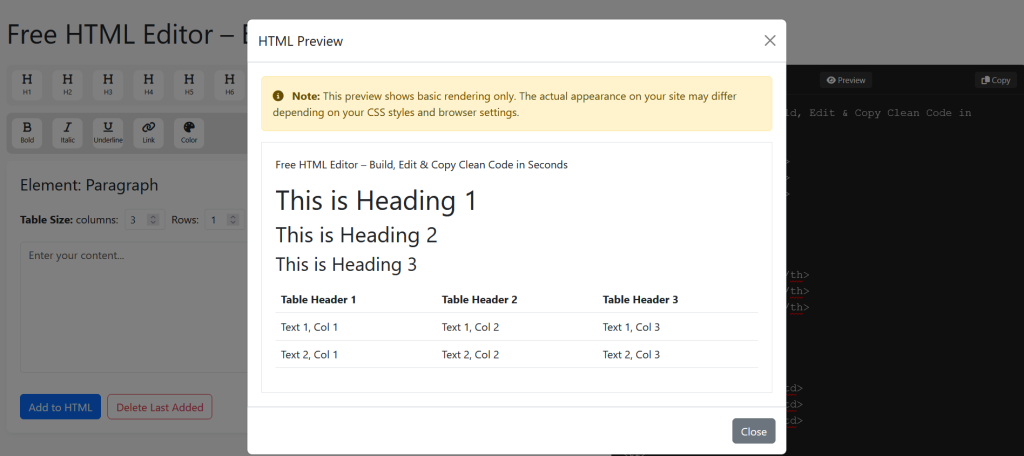
- Preview: See how it renders before copying.
- Copy: One-click copy to clipboard (no extra code).
Why Choose This Tool?
- No Login/Signup – 100% free.
- Clean Code – No missing tags or bloat.
- Usability – Easy to use.
FAQ
Q: How do I add a table with 5 columns?
A: Click “Table” → Set columns to 5 → Adjust rows → Click “Generate”.
Q: Is the alt text mandatory for an image?
A: No, but we suggest using it as a best SEO practice. It’s required for SEO.
Q: What if I am not ready with an image or have not uploaded it to my server?
A: If you are not ready with an image, just leave the “Image URL” blank and suggest filling in “ALT” text, so the tool will generate an SEO-friendly image name from the ALT tag text and use it while generating the HTML image tag. But, don’t forget to change the image path before using or uploading to your site.
Q: Can I check the HTML preview before using it?
A: Yes! Click the “Preview” button in the “Generated HTML” section to see exactly how your HTML will render. This helps catch formatting issues before copying.
Q: The preview and actual content on my website look different. Why?
A: This happens because:
- Your site’s CSS overrides default styles (e.g., fonts, colors, spacing).
- Browser defaults vary (Chrome/Firefox may render elements slightly differently).
How to fix it? For this, you need little technical knowledge and need to check the following:
- Copy the generated HTML → Paste into your CMS/website → Adjust your site’s CSS to match.
- Use browser developer tools (F12) to inspect and tweak styles.
Q: Can I save my HTML for future use?
A: No, this tool is 100% browser-based with no login/signup, so we don’t store your code. To reuse HTML:
- Copy the code → Save it in a text file or note-taking app (e.g., Notion, Google Docs).
- Bookmark the page with your work (changes won’t persist after refresh).
Q: How do I add a link that opens in a new tab?
A: You can follow the following steps to open a link in a new tab.
- Select text → Click the link icon 🔗.
- Paste your URL → Check “Open in new tab” → Save.
This adds target=”_blank” to your <a> tag automatically.
Why is my image not showing up?
A: Please check the following carefully to find why the image is not showing up:
Broken URL: Double-check the image link is correct (must start with https://). You can also open the image URL in a browser window to verify that the URL is valid.
Hotlinking blocked: Some sites (e.g., Instagram) prevent external image use. Upload to Imgur or your server.
Can I edit HTML after generating it?
A: Yes! You can:
- Edit directly in the “Generated HTML” panel.
- Click “Add to HTML” again to regenerate.
Ready to Create Flawless HTML?
Stop wasting time on broken tags – generate, edit, and copy perfect HTML in minutes!